Why Image Resizing Matters
Every millisecond counts on the modern web. Large, unoptimized images are the leading cause of slow page loads, which directly impacts your search engine rankings and user conversion rates. When you serve a 4000px image in a 400px container, you're forcing your users to download 100x more data than necessary.
But resizing isn't just about shrinking files. It's about preserving the visual integrity of your brand across different screen sizes and platforms.
Performance
Reduce LCP (Largest Contentful Paint) by serving exact dimensions.
Privacy
Avoid data leaks by processing sensitive images locally in your browser.
The Science of Resampling
When you resize an image, you're essentially recalculating the color values of every pixel. Simple algorithms like "Nearest Neighbor" or "Bilinear" often result in blurry edges or jagged "aliasing" artifacts.
Technical Insight
Why Lanczos3?
At Pixory, we use the Lanczos3 algorithm for downscaling. It works by using a sinc function to weight neighboring pixels, providing the best balance between sharpness and the absence of artifacts. This is the same standard used by professional software like Adobe Photoshop and GIMP.
Step-by-Step Guide to Resizing with Pixory
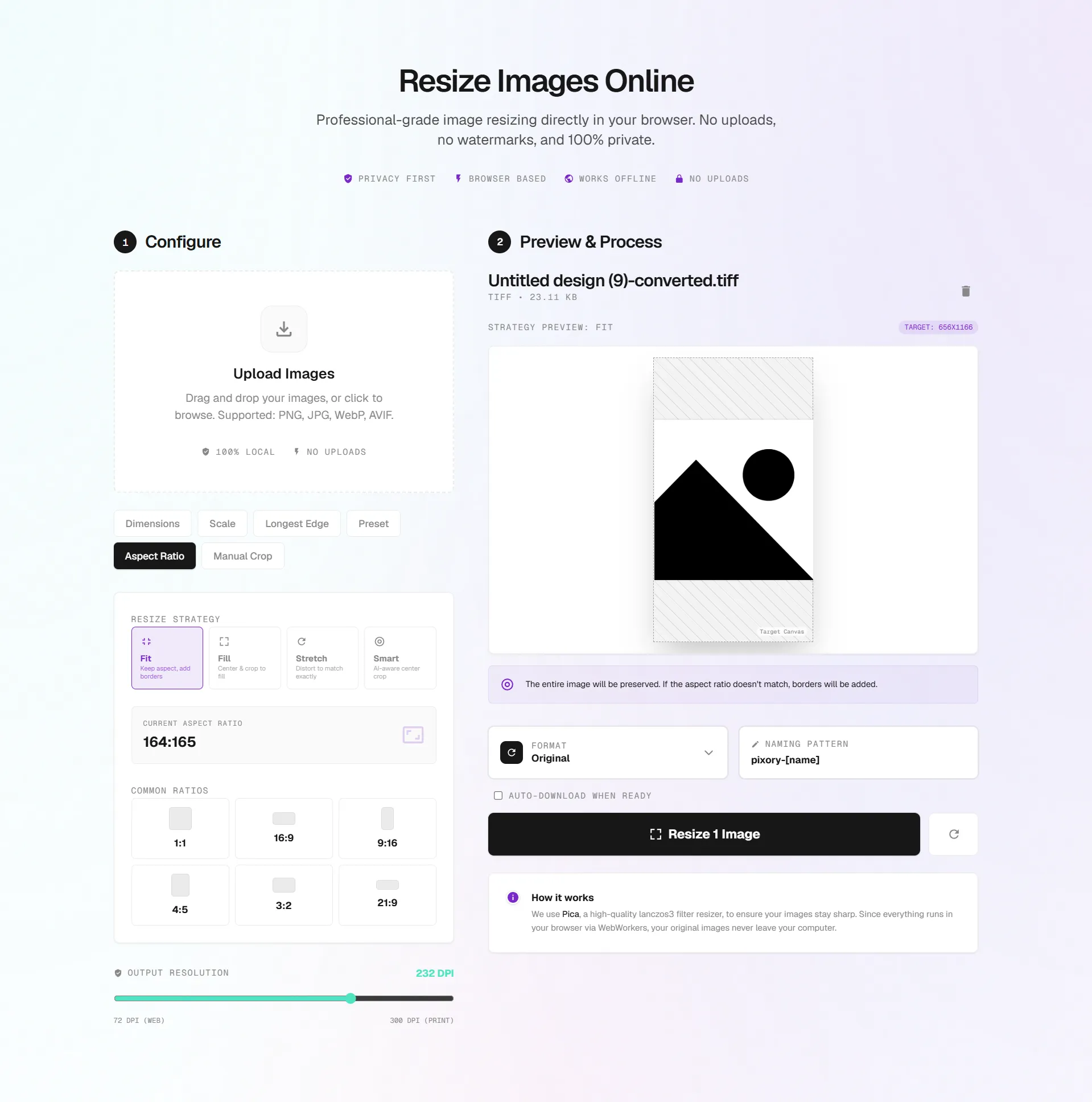
Upload Your Assets
Drag and drop one or a hundred images into the upload zone. Since Pixory works entirely in your browser, even 50MB RAW files are processed instantly without waiting for an upload progress bar.
Define Your Dimensions
Choose between fixed width/height or percentage scaling. Our smart "Aspect Ratio Lock" ensures your images never look stretched or squashed.
Perfect the Crop
Use our "Manual Crop" mode to focus on the most important subject of your photo, or use "Smart Center" to let our algorithm do the work for you.
Export & Optimize
Select your output format. We recommend WebP for modern browsers to get the best quality-to-file-size ratio. Click "Process All" and your files are ready in seconds.
Best Practices
- Always keep a backup: Our tool doesn't modify your original files, but it's good practice to keep originals in a "source" folder.
- Match your container: If your website layout has a max-width of 800px, don't upload images wider than 1600px (for 2x retina displays).
- Bulk is king: Use the bulk processing feature to standardize product photos or gallery images in one go.
Ready to optimize your images?
Experience the fastest, most private way to resize images on the web. No signup required.